

Overview
OTPless SDK accepts the user’s identity (phone number or email), authenticates through multiple channels, and returns a secure token upon success.The merchant app sends this token to its backend, which verifies it with the OTPless Server before proceeding with the user journey.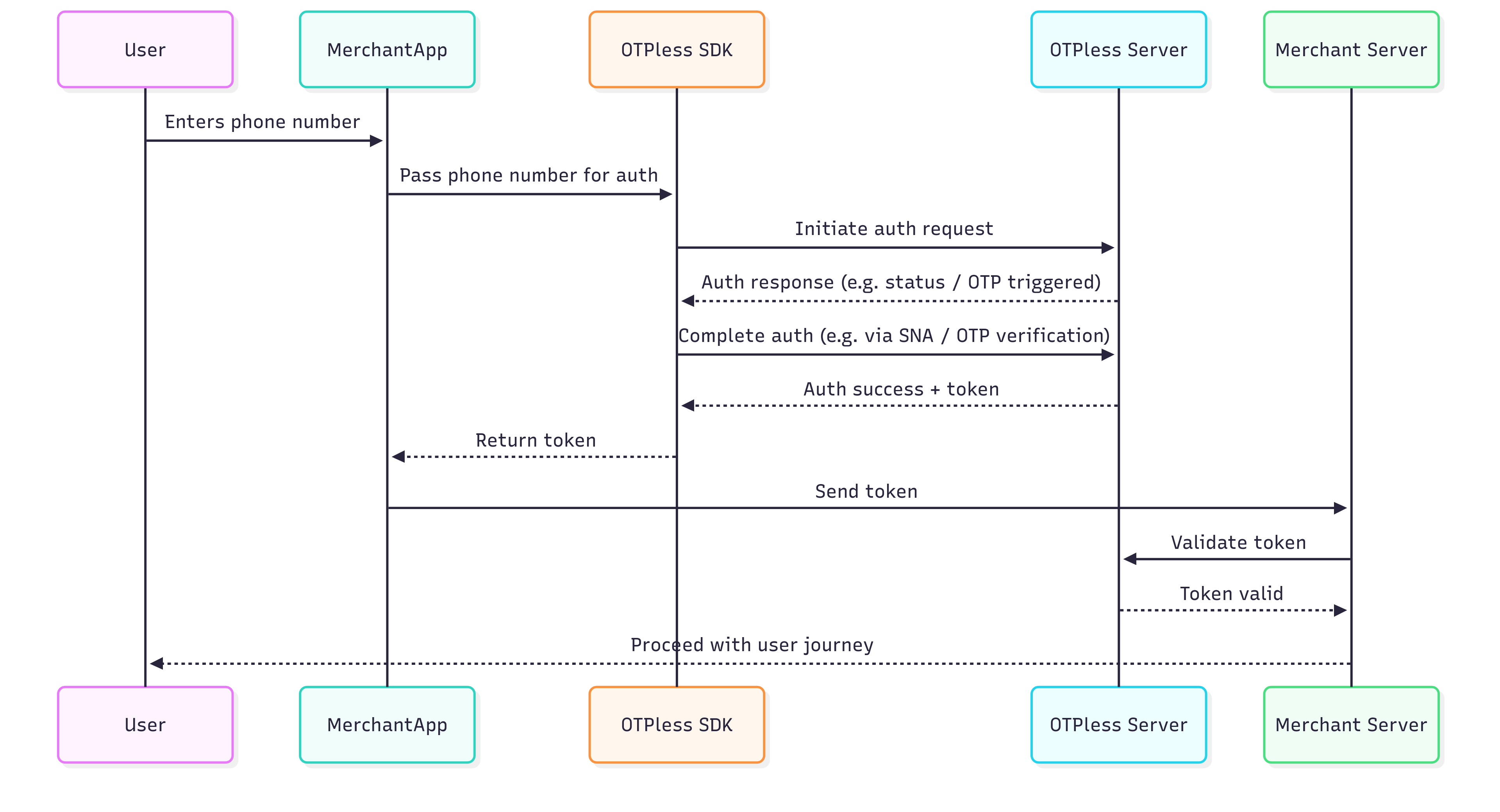
Integration Steps
Step 1: Installation
Add the following to yourpubspec.yaml:
Please find the latest version of the SDK here.
Step 2: Platform-specific Integrations
- Android
- iOS
- Add intent filter inside your
android/app/src/main/AndroidManifest.xmlfile into your Main activity code block:This step is only needed for Magic Link. Smart Auth integration do not require this step.
- Add Network Security Config inside your
android/app/src/main/AndroidManifest.xmlfile into your<application>code block (Only required if you are using the SNA feature):
- Change your activity launchMode to singleTop and exported true for your Main Activity:
This step is only needed for Magic Link. Smart Auth integration do not require this step.
- If your MainActivity extends
FlutterActivity, change it to extendFlutterFragmentActivityfor lifecycle awareness.
Step 3: Initialize the SDK
- Import the SDK in your
main.dartfile:
- Then, create an instance of the SDK:
- In your LoginScreen’s
initState, initialize the SDK and set the response callback:
LoginScreen
- Create a callback function to handle the response:
LoginScreen
Response Objects Structure
- SDK_READY
- FAILED
- INITIATE
- OTP_AUTO_READ
- VERIFY
- ONETAP
- DELIVERY_STATUS
- FALLBACK_TRIGGERED
Step 4: Initiate Authentication
Initiate the authentication process based on the user’s selected method.- Phone Auth
- Email Auth
- OAuth
Phone authentication allows users to verify their identity using their phone number. Merchants can choose from various authentication methods:
- Silent Authentication (SNA) – Automatically verifies the user without requiring OTP or MAGICLINK.
- OTP on Desired Channel – Sends a one-time password (OTP) via SMS, WhatsApp, or another preferred channel.
- Magic Link – Sends a link that users can click to authenticate.
- SNA + OTP – Uses silent authentication first and falls back to OTP if needed.
- OTP + Magic Link – Sends both an OTP and a magic link, allowing users to authenticate via either method.
Verify OTP
To verify the OTP entered by the user, use theverify method with the necessary parameters. Verifying OTP is required only in case of OTP authentication. No need to verify OTP in case of MAGICLINK.Error Handling
The error codes for android and iOS have to be handled separately.- Checkout android error codes
- Checkout iOS error codes
- To handle all the verification/initiation error codes for android and iOS, refer to the following code:
- Android
- iOS