> ## Documentation Index
> Fetch the complete documentation index at: https://otpless.com/docs/llms.txt
> Use this file to discover all available pages before exploring further.
# Introduction
> Welcome to the OTPLESS LoginPage SDK documentation. This sdk enables native and chrome custom tab connectivity for your application.
export const SampleGithubContainer = ({platform, href = '/api-reference/endpoint/verifytoken/verify-token-with-secure-data', text = 'authenticity of sign-in'}) => {
let githubLink = "https://github.com";
switch (platform.toLowerCase()) {
case "android":
githubLink = "https://github.com/devbathaniotpless/otpless-androidnative-demo";
break;
case "ios":
githubLink = "https://github.com/devbathaniotpless/otpless-iOS-demo";
break;
case "react native":
githubLink = "https://github.com/devbathaniotpless/otpless-react-native-demo";
break;
case "flutter":
githubLink = "https://github.com/devbathaniotpless/otpless-flutter-demo";
break;
case "ionic":
githubLink = "https://github.com/devbathaniotpless/otpless-ionic-demo";
break;
case "javascript":
githubLink = "https://github.com/devbathaniotpless/otpless-javascript-demo";
break;
case "vue":
githubLink = "https://github.com/devbathaniotpless/otpless-vue-demo";
break;
case "angular":
githubLink = "https://github.com/devbathaniotpless/otpless-angular-demo";
break;
case "wordpress":
githubLink = "https://github.com/devbathaniotpless/otpless-wordpress-demo";
break;
case "shopify":
githubLink = "https://github.com/devbathaniotpless/otpless-shopify-demo";
break;
case "react js":
githubLink = "https://github.com/devbathaniotpless/otpless-reactjs-demo";
break;
default:
githubLink = "https://github.com";
}
return
Learn how to securely `validate ID token` returned by OTPLESS {platform} SDK to ensure the {text} events from your backend server.
Learn how to securely `validate token` returned by OTPLESS {platform} SDK to ensure the {text} events from your backend server.
;
};
Requirements
- The compileSdk version should be 35.
- The minimum SDK version supported by the SDK is 21.
# Overview
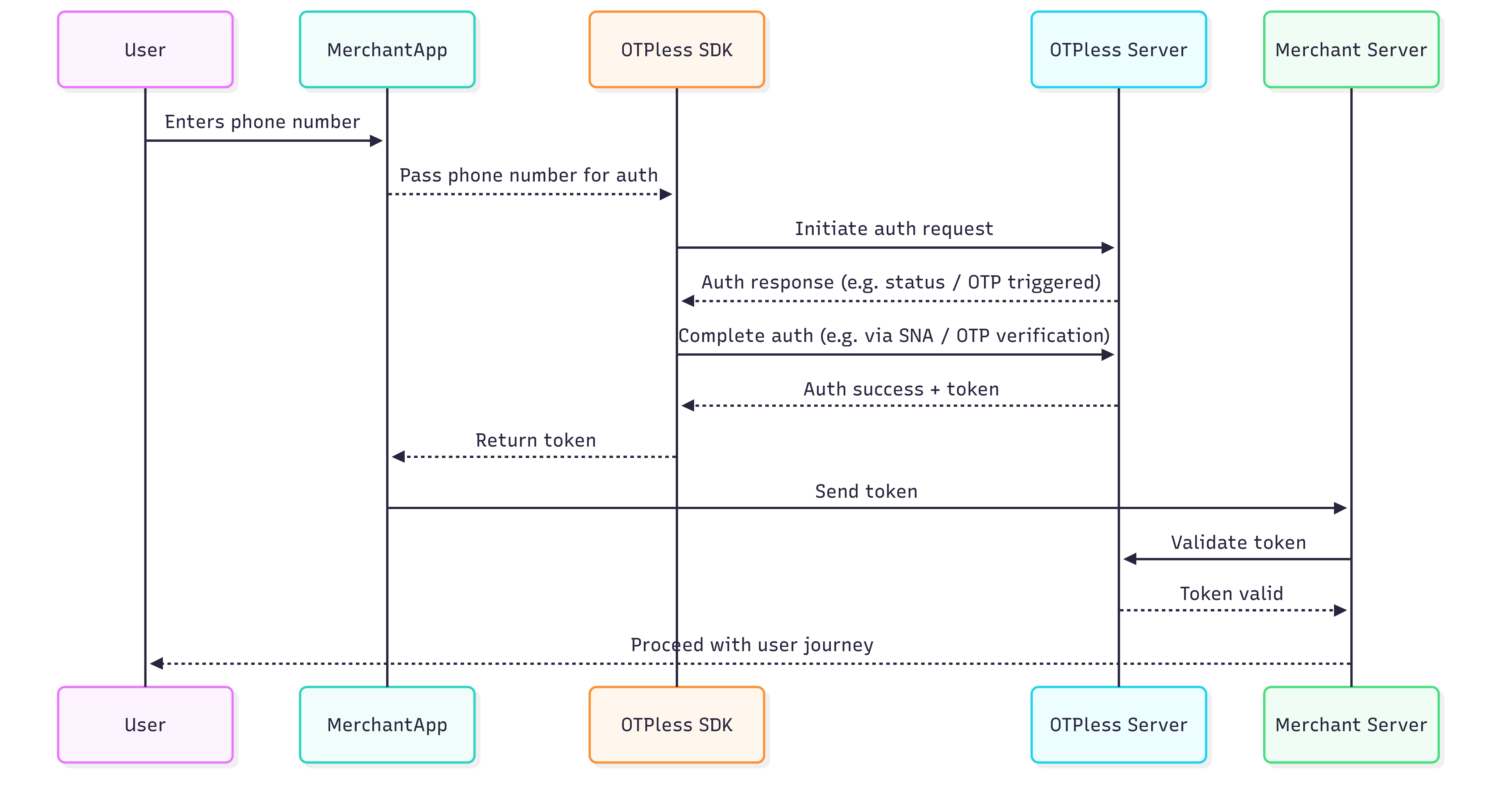
OTPless SDK accepts the user's identity (phone number or email), authenticates through multiple channels, and returns a secure token upon success.The merchant app sends this token to its backend, which verifies it with the OTPless Server before proceeding with the user journey.
 # Integration Steps
## Step 1: Add SDK Dependency
Add the following dependency in your app's `build.gradle`.
```groovy theme={null}
implementation ("io.github.otpless-tech:otpless-loginpage-android:1.1.1")
```
<>
{/*
Please check the latest version of the [otpless-loginpage-android](https://central.sonatype.com/artifact/io.github.otpless-tech/otpless-loginpage-android/versions).
*/}
## Step 2: Update AndroidManifest.xml
Add this intent filter to your LoginActivity in `AndroidManifest.xml`:
```xml theme={null}
```
Replace `YOUR_APP_ID` with [your actual App
ID](https://otpless.com/dashboard/customer/dev-settings/apiKeys) provided in
your OTPLESS dashboard.
> 🔍 Example: If your App ID is "AcmeApp123", scheme becomes `otpless.acmeapp123`
Additionally, ensure your activity is set to `singleTop` launch mode and that the `exported` attribute is true:
```xml theme={null}
android:launchMode="singleTop"
android:exported="true"
```
## Silent Network Authentication (SNA) Setup
* Make sure that **Silent Network Authentication** is enabled on the [OTPLESS dashboard](https://otpless.com/dashboard/customer/channels).
* Once you have **successfully integrated OTPLESS** Android SDK in your application, you only have to add the following line in your app's `AndroidManifest` file in the `` tag:
```xml AndroidManifest theme={null}
android:networkSecurityConfig="@xml/otpless_network_security_config"
```
## Step 3: Configure your SignIn/SignUp Activity
Import the `OtplessController` class
```kotlin Kotlin theme={null}
import com.otpless.loginpage.main.OtplessController
```
Declare a `otplessController` member in your `SignIn/SignUpActivity`
```kotlin Kotlin theme={null}
private lateinit var otplessController: OtplessController
```
Assign the member in `onCreate` of your `SignIn/SignUpActivity`, initialize the otplessController and register the callback response method.
On initialization is success callback is given in callback method.
```kotlin Kotlin theme={null}
otplessController = OtplessController.getInstance(this)
otplessController.initializeOtpless(OTPLESS_APP_ID){
// callback
}
otplessController.registerResultCallback(this::onAuthResponse)
```
Override your `SignIn/SignUpActivity` `onNewIntent` and forward the new `Intent` to `otplessController`.
```kotlin theme={null}
override fun onNewIntent(intent: Intent) {
super.onNewIntent(intent)
otplessController.onNewIntent(this, intent)
}
```
## Step 4: Starting otpless
Call `startOtplessWithLoginPage` method from `otplessController` to start otpless login page.
```kotlin Kotlin theme={null}
coroutineScope.launch {
// Prepare query parameters map for login (optional)
otplessController.startOtplessWithLoginPage()
}
// show progress screen
```
```kotlin Kotlin theme={null}
coroutineScope.launch {
val map = mutableMapOf()
val phone = phoneEt.text.toString()
if (phone.isNotEmpty()) {
map["phone"] = phone
map["countryCode"] = "91"
}
val loginPageParams = LoginPageParams(extraQueryParams = map)
otpless.startOtplessWithLoginPage(loginPageParams)
}
// show progress screen
```
```kotlin Kotlin theme={null}
coroutineScope.launch {
val map = mutableMapOf()
val email = emailEt.text.toString()
if (email.isNotEmpty()) {
map["email"] = email
}
val loginPageParams = LoginPageParams(extraQueryParams = map)
otpless.startOtplessWithLoginPage(loginPageParams)
}
// show progress screen
```
## Step 5: Handle auth response
Extract `token` from `authResponse` and validate `token` with backend apis.
[Backend documentation](https://otpless.com/docs/api-reference/endpoint/verifytoken/verify-token-with-secure-data)
```kotlin Kotlin theme={null}
import com.otpless.loginpage.model.OtplessResult
private fun onAuthResponse(authResponse: OtplessResult) {
when(authResponse) {
is OtplessResult.Success -> {
// handle success case
}
is OtplessResult.Error -> {
when(authResponse.errorType) {
ErrorType.INITIATE -> {
when(authResponse.errorCode) {
10_000 -> {
// handle user cancelled (User clicked on back button)
}
10_001 -> {
// handle user cancelled (User clicked on help button)
}
10_002 -> {
// handle user cancelled (User clicked on phone number change button)
}
7102 -> {
// handle invalid phone
}
7104 -> {
// handle invalid email
}
9120 -> {
// SDK not initialized
}
9125, 5050 -> {
// SDK Loading error
}
}
}
ErrorType.NETWORK -> {
// errorCode internet is not available 9103
when(authResponse.errorCode) {
9103 -> {
// handle internet error
}
}
}
ErrorType.VERIFY -> {
// handle custom error
}
}
}
}
}
```
## Step 6: Closing otpless
When your login page is closed or login is successful, close the `otplessController`.
```kotlin Kotlin theme={null}
otplessController.closeOtpless()
```
***
## Step 7: Tracking Multiple Events
You can observe all events using:
```kotlin theme={null}
OtplessEventManager.observerEvents { eventData: OtplessEventData ->
// Handle eventData here
}
```
To track and handle specific event categories, use:
```kotlin theme={null}
OtplessEventManager.observerEvents { eventData: OtplessEventData ->
when(eventData.category) {
EventCategory.LOAD -> {
// track url success loading action
}
EventCategory.CLICK -> {
// track user action
}
EventCategory.ACTION -> {
// track actions with metadata
}
}
}
```
### Sample Event JSON Payloads
```json theme={null}
{
"event": "ACTION",
"type": "INITIATE",
"metaData": {
"requestId": "abc123xyz",
"channel": "OTP/SILENT_AUTH",
"authType": "OTP/SILENT_AUTH",
"deliveryChannel": "OTP/SILENT_AUTH"
}
}
```
```json theme={null}
{
"event": "ACTION",
"type": "VERIFY_ERROR",
"metaData": {
"errorCode": "errorCode",
"errorMessage": "errorMessage",
"authType": "OTP/SILENT_AUTH"
}
}
```
```json theme={null}
{
"event": "ACTION",
"type": "OTP_AUTO_READ",
"metaData": {
"otp": "000000"
}
}
```
```json theme={null}
{
"event": "ACTION",
"type": "DELIVERY_STATUS",
"metaData": {
"deliveryChannel": "WHATSAPP/SMS/VOICE_CALL",
"communicationDelivered": true,
"authType": "OTP"
}
}
```
```json theme={null}
{
"event": "ACTION",
"type": "FALLBACK_TRIGGERED",
"metaData": {
"requestId": "req_98765abc",
"channel": "OTP",
"authType": "OTP",
"deliveryChannel": "SMS/WHATSAPP/VOICE_CALL"
}
}
```
```json theme={null}
{
"event": "CLICK",
"type": "PHONE_CHANGE",
"metaData": {}
}
```
```json theme={null}
{
"event": "CLICK",
"type": "VERIFY",
"metaData": {}
}
```
```json theme={null}
{
"event": "CLICK",
"type": "RESEND",
"metaData": {
"resendbuttonType": "WHATSAPP/SMS/CALL/DEFAULT"
}
}
```
```json theme={null}
{
"event": "CLICK",
"type": "CUSTOM",
"metaData": {
"custombuttonType": "buttonKeyName"
}
}
```
```json theme={null}
{
"event": "LOAD",
"type": "PAGE_LOADED",
"metaData": {}
}
```
***
# Integration Steps
## Step 1: Add SDK Dependency
Add the following dependency in your app's `build.gradle`.
```groovy theme={null}
implementation ("io.github.otpless-tech:otpless-loginpage-android:1.1.1")
```
<>
{/*
Please check the latest version of the [otpless-loginpage-android](https://central.sonatype.com/artifact/io.github.otpless-tech/otpless-loginpage-android/versions).
*/}
## Step 2: Update AndroidManifest.xml
Add this intent filter to your LoginActivity in `AndroidManifest.xml`:
```xml theme={null}
```
Replace `YOUR_APP_ID` with [your actual App
ID](https://otpless.com/dashboard/customer/dev-settings/apiKeys) provided in
your OTPLESS dashboard.
> 🔍 Example: If your App ID is "AcmeApp123", scheme becomes `otpless.acmeapp123`
Additionally, ensure your activity is set to `singleTop` launch mode and that the `exported` attribute is true:
```xml theme={null}
android:launchMode="singleTop"
android:exported="true"
```
## Silent Network Authentication (SNA) Setup
* Make sure that **Silent Network Authentication** is enabled on the [OTPLESS dashboard](https://otpless.com/dashboard/customer/channels).
* Once you have **successfully integrated OTPLESS** Android SDK in your application, you only have to add the following line in your app's `AndroidManifest` file in the `` tag:
```xml AndroidManifest theme={null}
android:networkSecurityConfig="@xml/otpless_network_security_config"
```
## Step 3: Configure your SignIn/SignUp Activity
Import the `OtplessController` class
```kotlin Kotlin theme={null}
import com.otpless.loginpage.main.OtplessController
```
Declare a `otplessController` member in your `SignIn/SignUpActivity`
```kotlin Kotlin theme={null}
private lateinit var otplessController: OtplessController
```
Assign the member in `onCreate` of your `SignIn/SignUpActivity`, initialize the otplessController and register the callback response method.
On initialization is success callback is given in callback method.
```kotlin Kotlin theme={null}
otplessController = OtplessController.getInstance(this)
otplessController.initializeOtpless(OTPLESS_APP_ID){
// callback
}
otplessController.registerResultCallback(this::onAuthResponse)
```
Override your `SignIn/SignUpActivity` `onNewIntent` and forward the new `Intent` to `otplessController`.
```kotlin theme={null}
override fun onNewIntent(intent: Intent) {
super.onNewIntent(intent)
otplessController.onNewIntent(this, intent)
}
```
## Step 4: Starting otpless
Call `startOtplessWithLoginPage` method from `otplessController` to start otpless login page.
```kotlin Kotlin theme={null}
coroutineScope.launch {
// Prepare query parameters map for login (optional)
otplessController.startOtplessWithLoginPage()
}
// show progress screen
```
```kotlin Kotlin theme={null}
coroutineScope.launch {
val map = mutableMapOf()
val phone = phoneEt.text.toString()
if (phone.isNotEmpty()) {
map["phone"] = phone
map["countryCode"] = "91"
}
val loginPageParams = LoginPageParams(extraQueryParams = map)
otpless.startOtplessWithLoginPage(loginPageParams)
}
// show progress screen
```
```kotlin Kotlin theme={null}
coroutineScope.launch {
val map = mutableMapOf()
val email = emailEt.text.toString()
if (email.isNotEmpty()) {
map["email"] = email
}
val loginPageParams = LoginPageParams(extraQueryParams = map)
otpless.startOtplessWithLoginPage(loginPageParams)
}
// show progress screen
```
## Step 5: Handle auth response
Extract `token` from `authResponse` and validate `token` with backend apis.
[Backend documentation](https://otpless.com/docs/api-reference/endpoint/verifytoken/verify-token-with-secure-data)
```kotlin Kotlin theme={null}
import com.otpless.loginpage.model.OtplessResult
private fun onAuthResponse(authResponse: OtplessResult) {
when(authResponse) {
is OtplessResult.Success -> {
// handle success case
}
is OtplessResult.Error -> {
when(authResponse.errorType) {
ErrorType.INITIATE -> {
when(authResponse.errorCode) {
10_000 -> {
// handle user cancelled (User clicked on back button)
}
10_001 -> {
// handle user cancelled (User clicked on help button)
}
10_002 -> {
// handle user cancelled (User clicked on phone number change button)
}
7102 -> {
// handle invalid phone
}
7104 -> {
// handle invalid email
}
9120 -> {
// SDK not initialized
}
9125, 5050 -> {
// SDK Loading error
}
}
}
ErrorType.NETWORK -> {
// errorCode internet is not available 9103
when(authResponse.errorCode) {
9103 -> {
// handle internet error
}
}
}
ErrorType.VERIFY -> {
// handle custom error
}
}
}
}
}
```
## Step 6: Closing otpless
When your login page is closed or login is successful, close the `otplessController`.
```kotlin Kotlin theme={null}
otplessController.closeOtpless()
```
***
## Step 7: Tracking Multiple Events
You can observe all events using:
```kotlin theme={null}
OtplessEventManager.observerEvents { eventData: OtplessEventData ->
// Handle eventData here
}
```
To track and handle specific event categories, use:
```kotlin theme={null}
OtplessEventManager.observerEvents { eventData: OtplessEventData ->
when(eventData.category) {
EventCategory.LOAD -> {
// track url success loading action
}
EventCategory.CLICK -> {
// track user action
}
EventCategory.ACTION -> {
// track actions with metadata
}
}
}
```
### Sample Event JSON Payloads
```json theme={null}
{
"event": "ACTION",
"type": "INITIATE",
"metaData": {
"requestId": "abc123xyz",
"channel": "OTP/SILENT_AUTH",
"authType": "OTP/SILENT_AUTH",
"deliveryChannel": "OTP/SILENT_AUTH"
}
}
```
```json theme={null}
{
"event": "ACTION",
"type": "VERIFY_ERROR",
"metaData": {
"errorCode": "errorCode",
"errorMessage": "errorMessage",
"authType": "OTP/SILENT_AUTH"
}
}
```
```json theme={null}
{
"event": "ACTION",
"type": "OTP_AUTO_READ",
"metaData": {
"otp": "000000"
}
}
```
```json theme={null}
{
"event": "ACTION",
"type": "DELIVERY_STATUS",
"metaData": {
"deliveryChannel": "WHATSAPP/SMS/VOICE_CALL",
"communicationDelivered": true,
"authType": "OTP"
}
}
```
```json theme={null}
{
"event": "ACTION",
"type": "FALLBACK_TRIGGERED",
"metaData": {
"requestId": "req_98765abc",
"channel": "OTP",
"authType": "OTP",
"deliveryChannel": "SMS/WHATSAPP/VOICE_CALL"
}
}
```
```json theme={null}
{
"event": "CLICK",
"type": "PHONE_CHANGE",
"metaData": {}
}
```
```json theme={null}
{
"event": "CLICK",
"type": "VERIFY",
"metaData": {}
}
```
```json theme={null}
{
"event": "CLICK",
"type": "RESEND",
"metaData": {
"resendbuttonType": "WHATSAPP/SMS/CALL/DEFAULT"
}
}
```
```json theme={null}
{
"event": "CLICK",
"type": "CUSTOM",
"metaData": {
"custombuttonType": "buttonKeyName"
}
}
```
```json theme={null}
{
"event": "LOAD",
"type": "PAGE_LOADED",
"metaData": {}
}
```
***